
Techivation
M-Compressor 2
M-Compressor 2 is a spectral audio plug-in that gives you unprecedented control over dynamics and tone by combining downward and upward compression, gating, and frequency-dependent processing. It’s equipped with our next-gen intelligent Mix Assistant, which turns this depth into a single control guided by your creative intent.

Smart solution for creators
Absolute Precision Meets Creative Intent
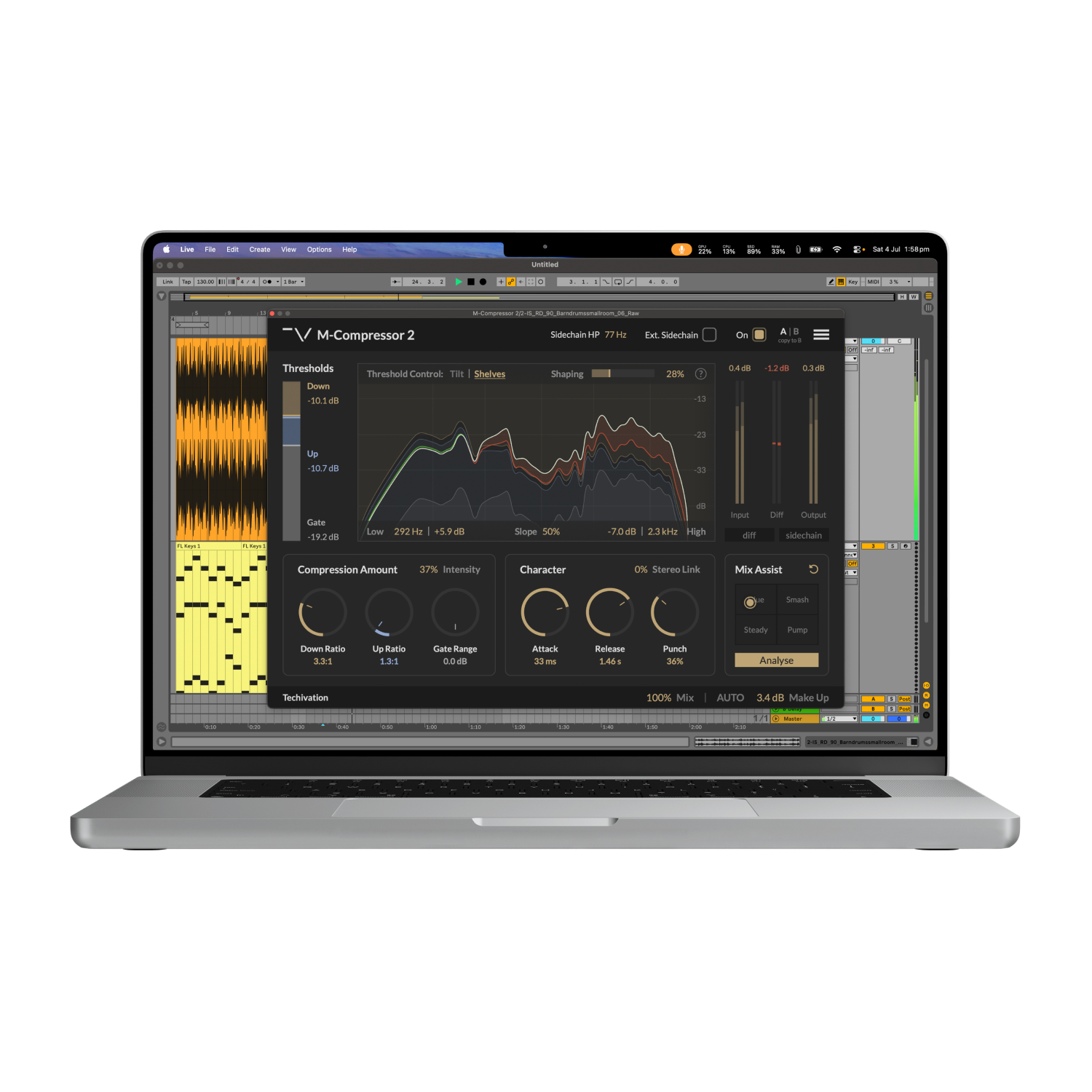
Three Processors In One, with Shelves & Tilt Compression
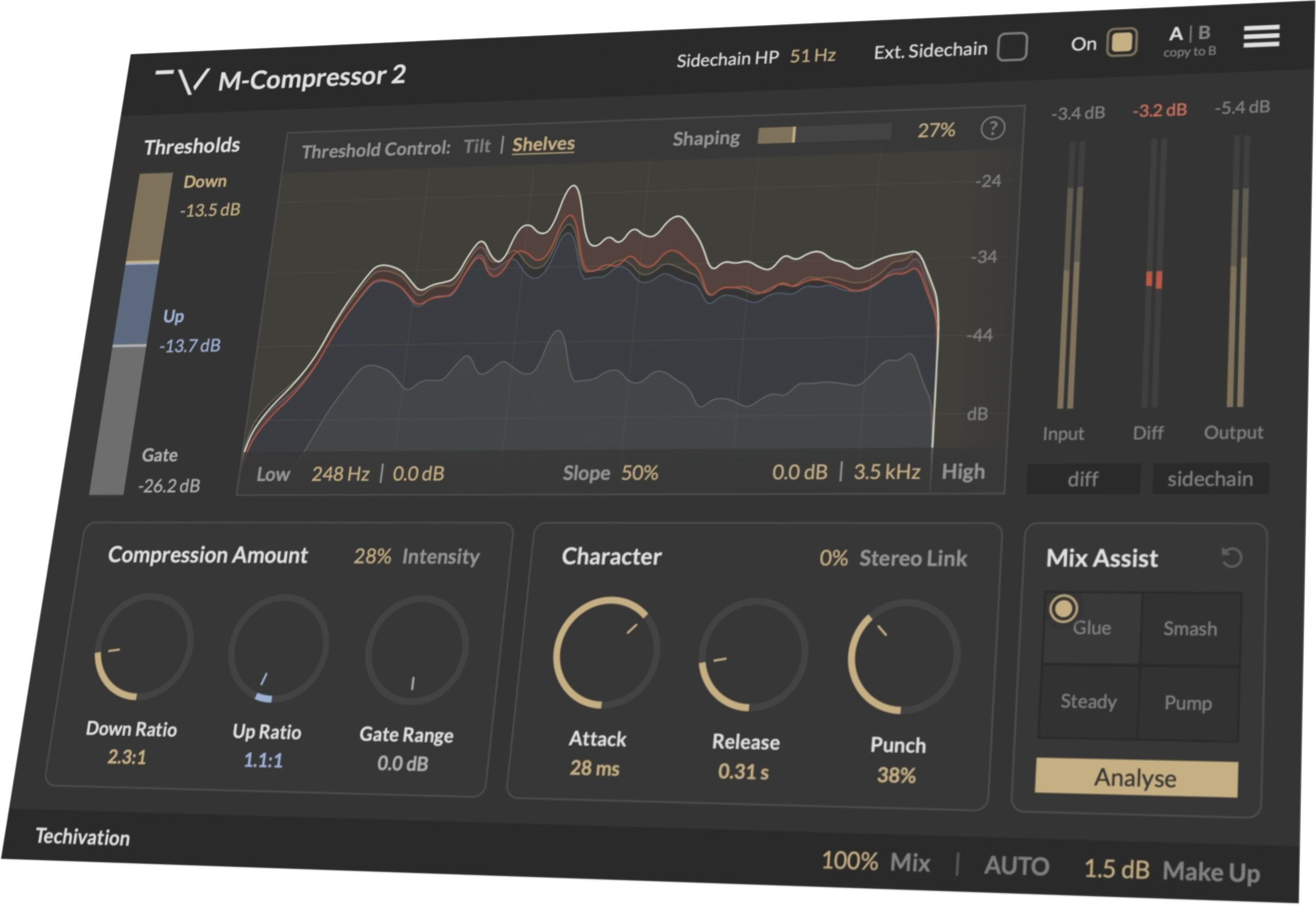
M-Compressor 2 gives you total control over the dynamic range by combining downward compression, upward compression, and gating. Signals above the "Down" threshold are attenuated to tame loud spikes, signals between the "Up" and "Gate" thresholds are boosted to bring softer details forward, and anything below the "Gate" threshold is turned down—so compression never lifts up background noise or bleed.
With the new "Shelves" mode, you can apply more or less compression to low and high frequencies using a dual shelving filter with "Frequency," "Gain," and "Slope" controls, letting you reshape where the compressor leans in and eases off. For faster tone shaping, Tilt mode shifts compression across the spectrum in a single move—quick, musical, and easy to dial in.
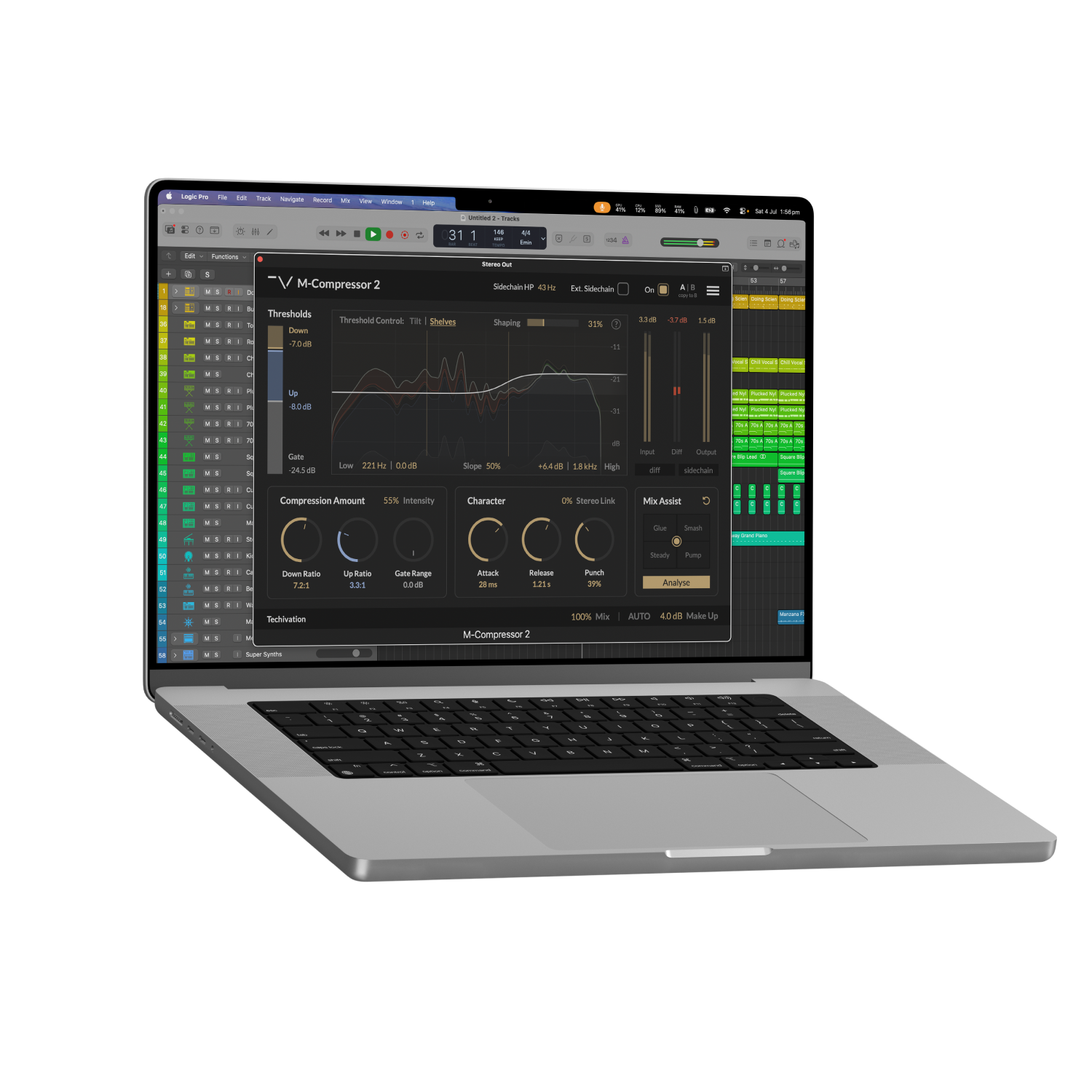
True spectral compression, with Intent-driven intelligent assistant
M-Compressor 2 is a true spectral compressor, applying different amounts of compression to every frequency without the band-splitting of multi-band designs. You shape the spectral threshold directly, or let the new Shaping control refine it dynamically—continuously analysing your audio to relax muddy build-ups and harsh resonances for a more open, balanced sound.
M-Compressor 2 pioneers our new vision for the intelligent Mix Assistant, tying all plug-in parameters into one intuitive control. After analysing your audio, it generates 12 compression styles tailored to your sound. Choose 4 of these styles and seamlessly blend between them, unlocking infinite sonic possibilities driven by your creative intent, with every change visible in the parameters. Mix Assist follows your lead: manual adjustments get folded into the Styles, so blending always pushes toward your desired feel while respecting your input.
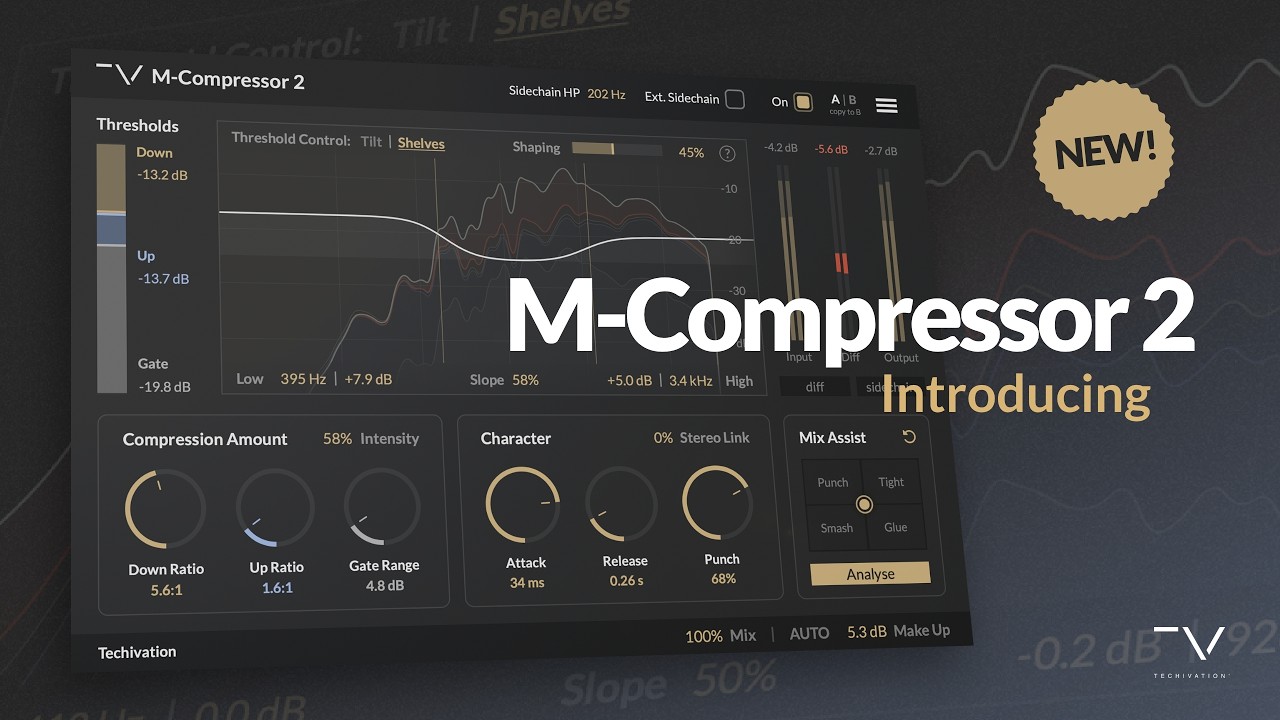
Let's hear it in action
Sound Examples

Key Features
Thresholds
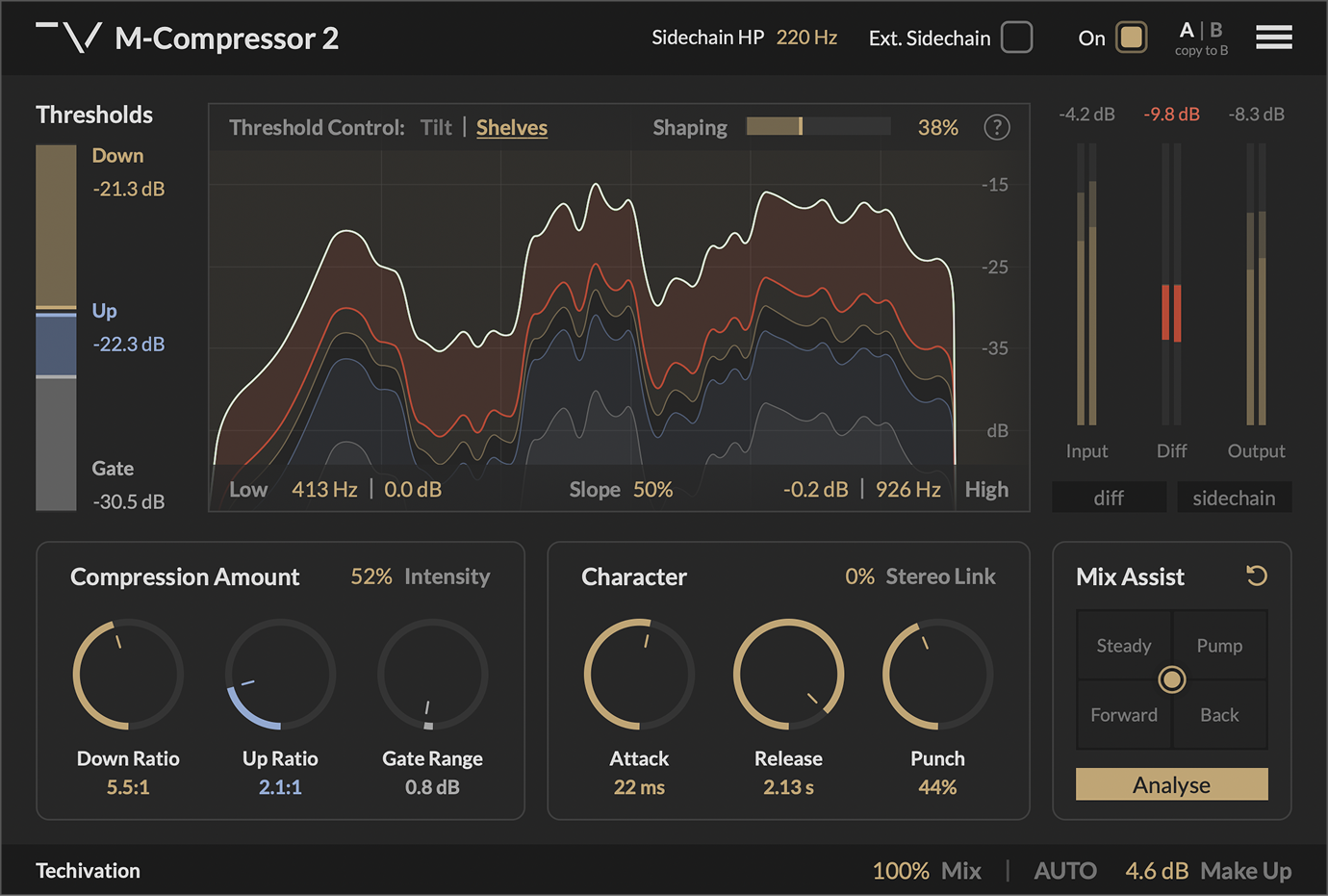
Regular compressors adjust the overall signal level based on its relationship to the threshold value. Instead of the overall signal level, M-Compressor works with the signal spectrum. Individual frequencies are compressed based on their levels relative to the spectral threshold curve. The shape of the spectral threshold is determined by the spectral contour of the input signal, and it dynamically changes with the input. Down Threshold sets the level of the downward spectral threshold curve. When the signal rises above the downward threshold, it is attenuated according to the "Down Ratio" parameter. Downward compression is the traditional compression method for shaping dynamics and loudness of the track.
Down Ratio
Controls the strength of downward compression. It ranges from 1.0:1, when downward compression is disabled, to 20.0:1, when downward attenuation is the strongest.
Up Ratio
Controls the strength of upward compression. It ranges from 1.0:1, when upward compression is disabled, to 20.0:1, when upward boost is the strongest.
Gate Range
Sets the maximum amount of attenuation that is applied by gating. When set to 0.0 dB, gating is disabled.
Intensity
Controls how soft or hard the compression character is. Lower settings use softer knee with a limited downward attenuation range. Higher settings use harder knee and the full downward attenuation range.
Attack
Controls how quickly the compressor responds to an increase in signal level. Faster attack settings result in tighter controlled peaks, but softened impact. Slower attack allows more of the transient through, resulting in snappier sound.
Release
Controls how long it takes to stop compressing once the signal level has subsided.
Punch
Allows you to shape the transients by controlling the attack response of the compressor. Low "Punch" settings result in softening of the transients, while higher values emphasise the original transients that are let through during the compressor attack.
Stereo Link
Controls how M-Compressor 2 responds to stereo signals. When it's set to zero, the stereo channels are treated completely independently (dual-mono compression). At 100%, the spectral thresholds for the stereo channels are linked together, preserving the original stereo image after compression (stereo compression). Values between 0 and 100% allow you to find the right level of channel independence when compressing stereo signals.
Spectrum Analyser panel
The spectrum analyser in M-Compressor 2 visualises the input signal spectrum, the downward and upward spectral thresholds, gate threshold, and the spectral adjustments performed by the compressor. The input spectrum is shown as a white line. The downward compression threshold is shown in gold, the upward compression threshold is shown in blue, and the gate threshold is shown in grey. When the signal rises above the downward threshold or falls below the gate threshold, it is attenuated. The amount of the attenuation is shown in red. When the signal falls below the upward threshold, it is boosted. The amount of boost is shown in green.
Threshold Control Mode
Chooses whether to use a simple Tilt filter or a pair of Shelving filters for manually shaping the spectral thresholds.
Tilt Centre
Controls the centre frequency around which the spectral thresholds are tilted.
Tilt Amount
Sets the decibel-per-octave slope of the spectral threshold tilt.
Shelf Frequency
Sets the transition frequency of the shelving filter. "Low" filter will affect the frequencies below this value, and "High" filter will affect frequencies above.
Shelf Gain
Controls the amount of boost or attenuation of the shelving filter.
Shelf Slope
Controls the steepness of both "Low" and "High" shelving filters.
Mix Assist Panel
The next generation of Mix Assist allows to set all of the plug-in parameters using a single intuitive control. To enable Mix Assist, play a loud part of the track and click "Analyse". M-Compressor 2 will capture 3.5 seconds of the audio, analyse it, and set up custom tailored compression Styles for your track. Four most relevant Styles will be automatically assigned to the Mix Assist Style Blend pad. Moving the blend between the selected Styles will adjust all plug-in parameters. You can right-click any of the four slots to bring up the menu containing all available compression styles.
Sidechain Highpass
Positions of spectral thresholds in M-Compressor 2 are determined by the sidechain input level (internal or external, when 'Ext. Sidechain' is enabled). The Sidechain HP parameter gives you control over how much the spectral thresholds react to low frequencies of the sidechain. Increasing 'Sidechain HP' value results in low frequencies having less impact on the thresholds. This is achieved by applying a highpass filter to the sidechain signal. You can audition this effect by enabling the "sidechain" output mode.
External Sidechain
Ext. Sidechain switch allows to drive the compression by an external signal. Make sure to refer to your DAW manual for information on how to set up the external sidechain input to the plug-in. When "Ext. Sidechain" is enabled, the downward spectral threshold level is controlled by the sidechain input level. The shape of the spectral threshold, however, is still determined by the main input.
Parallel compression
Mix control allows to use M-Compressor 2 for parallel compression. A common scenario would be to set up M-Compressor 2 for an aggressive sound, and then blend it with the original signal by lowering the "Mix". The "Make Up" gain is applied to the compressed signal before the "Mix", so you can match the "before" and "after" levels for seamless parallel blending.
Auto-gain & Make Up
To make level matching easier while you tweak the M-Compressor 2 settings, it offers the Auto Gain mode. When enabled, "Auto Gain" continuously measures the signal levels before and after compression, and automatically applies the appropriate make up gain. Since "Auto Gain" is based on measurement, it might need a moment to adjust to quick parameter changes.
Output modes
Diff lets you listen to the difference between the processed and the original signals, while Sidechain lets you listen to the sidechain input of the compressor.
A | B Comparison
The A|B buttons provide a convenient way to compare different options and find the optimal setting for your audio processing needs. With just a click, you can easily switch between two different versions of the same processing chain and compare the results. Moreover, the "Copy A to B" and "Copy B to A" functions enable you to quickly test small tweaks and adjustments by copying the settings from one version to the other and comparing their effects. By using the A|B buttons in conjunction with the "Copy" functions, you can efficiently assess subtle variations in your processing and make informed decisions on the best approach to take. This streamlined workflow saves you time and effort, allowing you to focus on the creative aspects of your mix without getting bogged down in technical details.
Undo/Redo
The M-Compressor 2 plug-in comes equipped with the handy feature of built-in "Undo" and "Redo" options, providing added peace of mind while working on your audio processing. With these functions, you can easily revert to previous settings or redo changes that were made in error, saving time and eliminating the stress of potentially losing valuable adjustments. The "Undo" and "Redo" options allow you to experiment with different settings and configurations without the fear of permanently altering your audio. Additionally, this feature enhances your workflow by providing an efficient way to backtrack and explore alternative processing paths, enabling you to make more informed decisions in your audio production.
Tooltips
M-Compressor 2 features a handy "tooltips" option that you can enable or disable from the plugin's menu. When this option is enabled, you can see a brief description of each part of the user interface by simply holding your mouse over that particular section. Tooltips are an excellent way to quickly learn about the various controls and settings in the plugin, making it easier to navigate and use the interface effectively. They can provide helpful information about each parameter, including its function, range, and how it affects the audio signal. Enabling the tooltips option is a great way to speed up your workflow and make it easier to work with the M-Compressor 2 plugin. If you're not sure what a particular control does, simply hover your mouse over it to get a quick and informative tooltip.
GUI Scale
The interface scaling feature in M-Compressor 2 allows you to customise the size of the GUI to suit your preferences and optimise your workflow. With a range of scaling options available, from 50% to 150%, you can personalise the interface to match your visual and working style. One of the great things about this feature is that the visual quality of the plug-in remains consistent, regardless of the scale you choose. This ensures that the interface remains clear and legible, even when scaled up or down to fit your preferred viewing size. Additionally, the interface scaling feature in M-Compressor 2 is optimised for high-end quality monitors, including retina displays, ensuring that the plug-in looks great and performs reliably on a variety of devices.
Presets
The plug-in offers the convenience of saving and loading your own custom presets using the menu located in the top-right corner. This feature enables you to quickly access and apply a variety of settings tailored to specific mixing needs, streamlining your workflow and providing a consistent starting point for your audio processing tasks. Additionally, by saving your own custom presets, you can easily recall your preferred settings across different projects, ensuring a cohesive and efficient approach to your audio production.
System
Requirements
Windows
7 and up as 64-bit VST and VST3, and 64-bit AAX (PT11 and up).
Mac OS
10.15 (Catalina) and higher as VST, VST3, AU, and AAX. Intel processors, and Apple Silicon Chips.